Quick Copy (Finder)
Copy files or folders straight from the Finder with the FilmCan engine, without opening the main FilmCan window.
Start a Quick Copy
- In the Finder, select one or more files or folders.
- Right-click, then choose Services → FilmCan Copy. You can also drop the selection on the FilmCan icon in the Dock.
- A small window opens. The main FilmCan window does not appear.
If FilmCan Copy is missing from the menu, open FilmCan once so macOS registers it. Then check System Settings → Keyboard → Keyboard Shortcuts → Services → Files and Folders and tick FilmCan Copy.
Each request opens its own window, so two selections run side by side.
The setup window
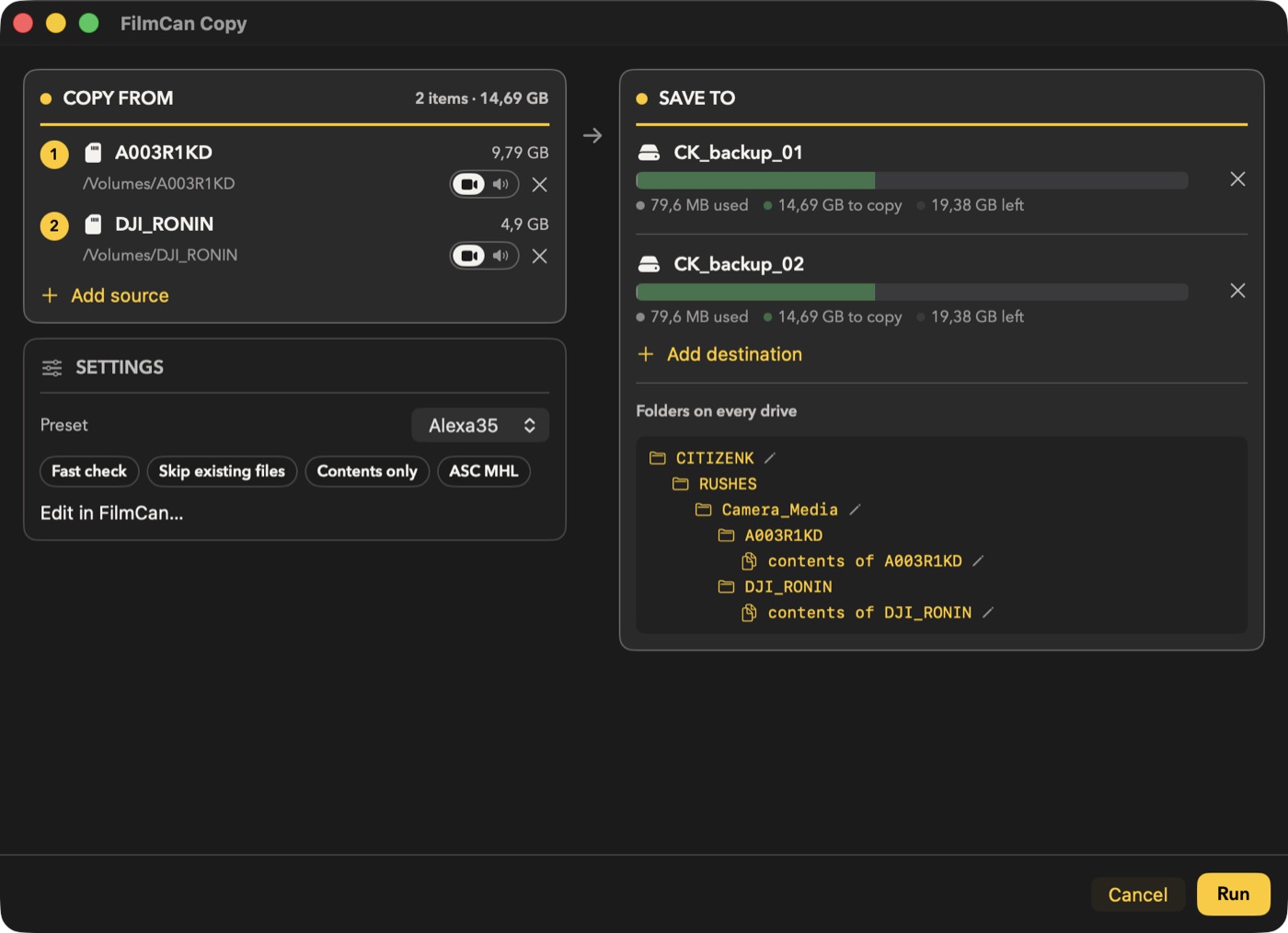
The window is about 900 pt wide and has two columns: Copy From and Settings on the left, Save To on the right.
- Copy From: your selection. Each row shows the full name and size, then the path. When folders are organized, each row also has a Camera / Sound switch (click either side to flip it), pre-filled from the content (an item is Sound when most of its files are audio), and an x to remove the source.
- Save To: one destination to start. Click Add destination for more. The source is read once and written to every destination. Each destination shows a capacity bar (used, to copy, free, left to right) with a legend.
- Preset (in Settings): pick None or one of your saved organization presets. With a preset, the window shows its options as chips (for example Paranoid check, Skip existing files, Whole folder or Contents only, ASC MHL); hover them for details. A preset set to Ask each time runs as Skip.
- With None, the basic options are:
- Verification: Fast (default), Paranoid or Off.
- If file exists: Skip (default), Overwrite, Add counter or Verify using hash list.
- Copy: the folder (default) or its contents only.
- Organization: None, Date only, or Project + day.
- Organization section (when organized): Project and Day (Day is optional), then a live preview of the folders that will be created, always fully expanded, new ones highlighted. One Folders on every drive tree is shown when all destinations get the same folders, otherwise one tree per drive. The top folder and the Camera/Sound folder (
Camera_Media,Sound_Media) have a pencil: click it to rename that folder in place for this copy; the arrow restores the preset's name. - Save as preset: type a name to keep these settings as a preset. Leave it empty to skip. A picked date is never saved.
Project and Day are cleaned before use: spaces and characters Netflix prohibits become _.
Run stays disabled until there is at least one destination that exists, and a Project name when the organization is Project + day.
Folder layout
| Organization | Camera item A001 |
Sound item ZOOM_F8 |
|---|---|---|
| None | A001/ |
ZOOM_F8/ |
| Date only | 20261014/Camera_Media/A001/ |
20261014/Sound_Media/ZOOM_F8/ |
| Project + day | 20261014_Docu_Truc_itw/Camera_Media/A001/ |
20261014_Docu_Truc_itw/Sound_Media/ZOOM_F8/ |
Each roll gets its own ascmhl folder, like a normal backup.
Progress and result
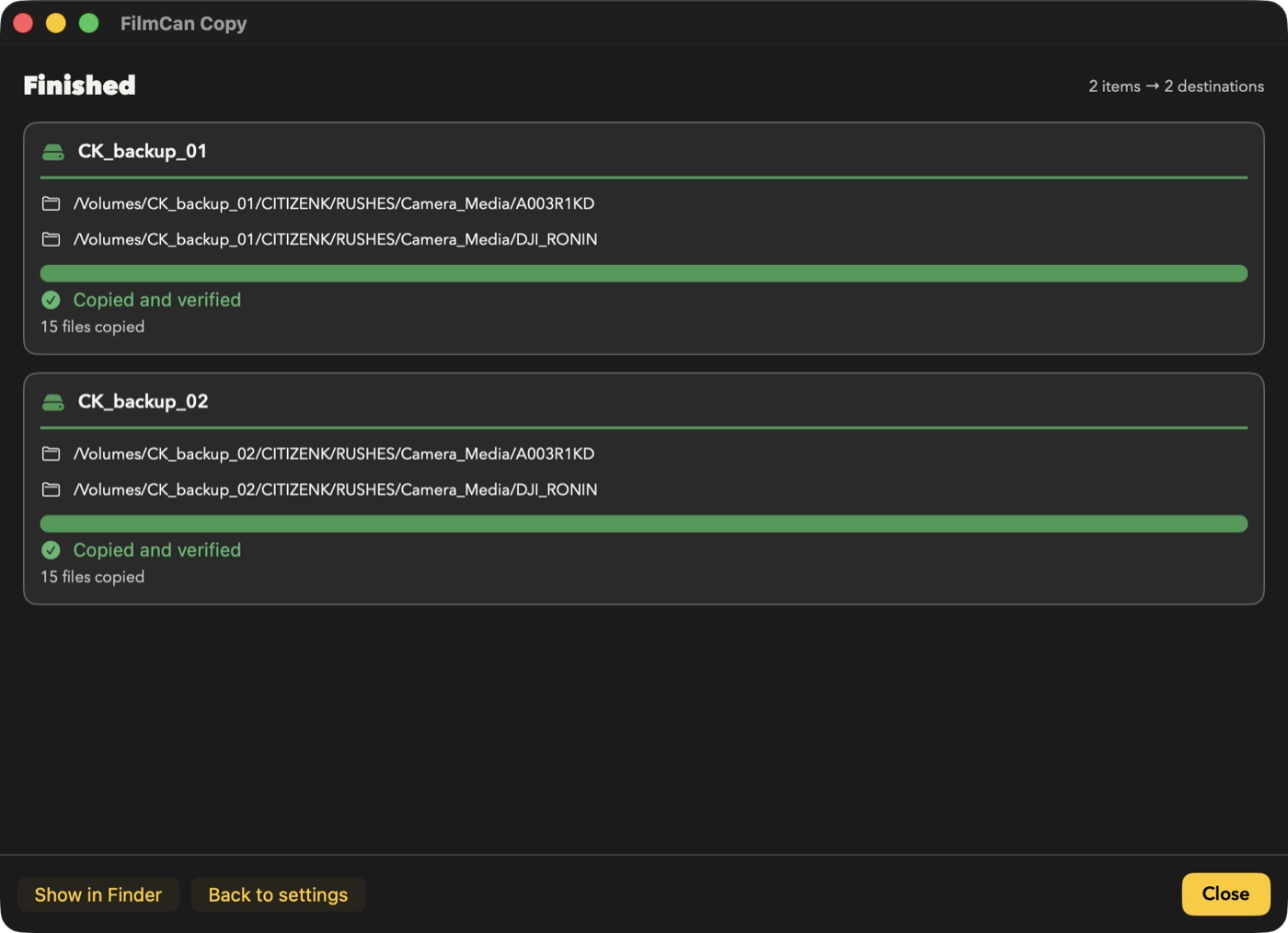
The setup window turns into the progress window. Each destination shows the copy bar (yellow) and the verify bar (green), speed, estimated time and the current file.
- Stop stops the copy cleanly. Nothing is deleted. Run Quick Copy again on the same selection and destination: only what is missing is copied.
- When it ends, each destination shows a green check (copied and verified) or a red message explaining the failure. One failing destination does not stop the others.
- Each destination card lists the folders the copy writes to (for example
…/Camera_Media). Click one to open it in Finder, during or after the copy. - Show in Finder opens the folder that was created.
- Back to settings returns to the setup window with the same choices, to copy again or change something.
- If everything was already present, the window says Already backed up and nothing is copied.
Closing the window during a copy asks whether to stop it.
When FilmCan closes by itself
If FilmCan was not running and the Quick Copy started it, FilmCan quits when you close the last Quick Copy window. If FilmCan was already open, it stays open. Opening the main window yourself (for example with Edit in FilmCan…) also keeps it open.
Good to know
- Quick Copy has Stop, but no Pause.
- Select one loose file at a time, or put several files in a folder. Several loose files in the same selection cannot share one hash list yet, so Run stays disabled.
- With the Netflix Ingest preset, a folder name containing prohibited characters blocks Run. Rename the folder first.
- Quick Copy works like a normal backup: it writes the transfer log, sends notifications, ntfy and webhooks, and saves a history entry. These runs are saved but not listed in the History tab, which shows the selected backup only.